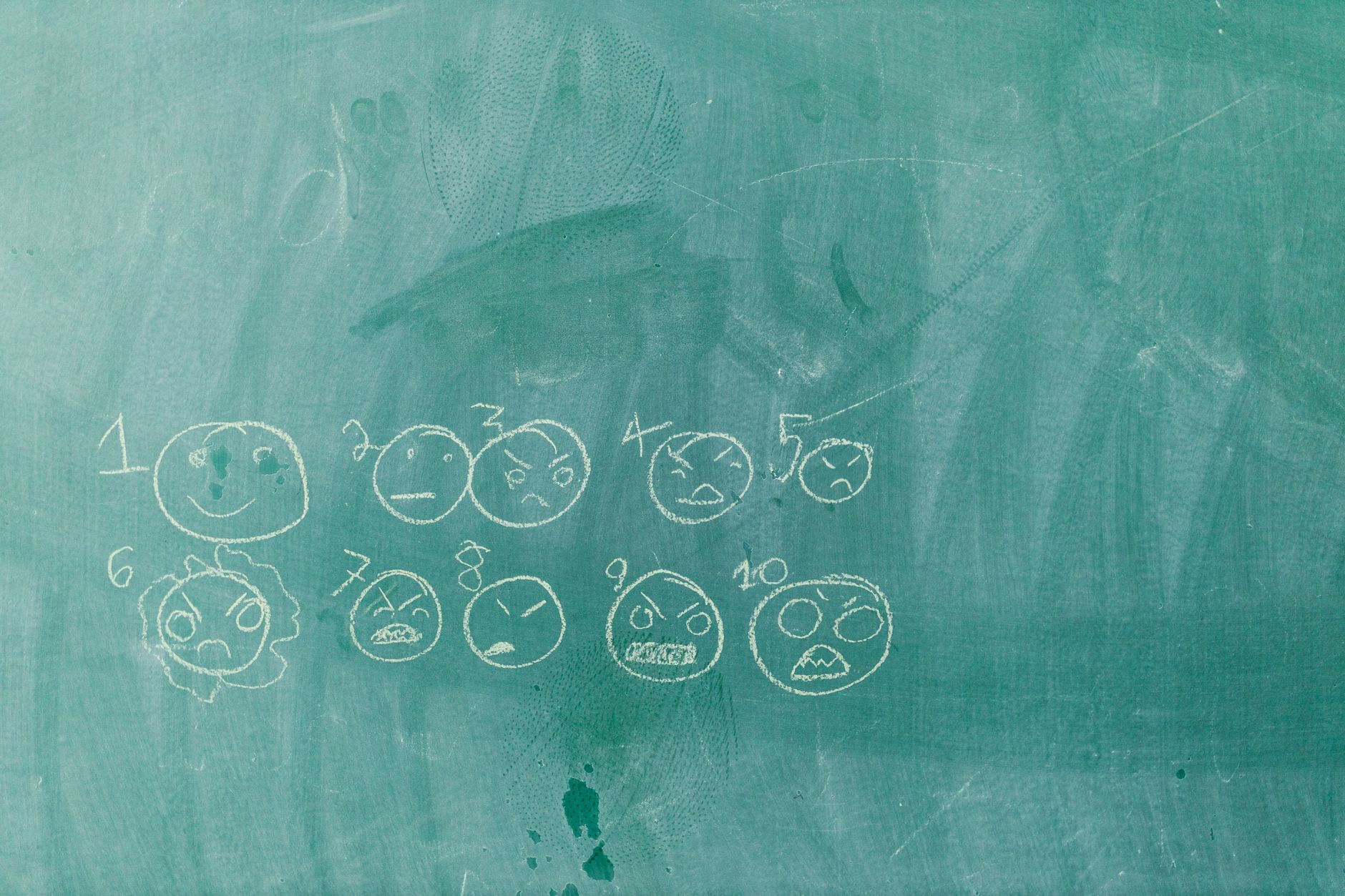
I’ll be honest with you: my drawing skills peaked in kindergarten. Last month, I was sitting in a design sync trying to explain a visual concept for a landing page hero banner. I grabbed a digital pen, scribbled what was supposed to be a glowing cyberpunk cityscape, and ended up showing my team what looked like a drunk spider’s tax document. It was embarrassing. But that awkward moment pushed me down a rabbit hole of testing the best AI doodle tools available today.
If you've ever tried turning a rough sketch into high-fidelity artwork using conventional AI generators like Midjourney or ChatGPT, you know the pain. Prompting purely with text often feels like playing telephone with an overly creative robot. You ask for a cat sitting on a fence, and it gives you a five-legged mythical creature in an abstract dimension. That’s precisely where sketch-to-image cutting-edge tech changes the game. By combining visual input with text prompts, modern solutions bridge the gap between human imagination and synthetic creation. Over the past three weeks, I’ve stress-tested every major tool on the market to answer one practical question: which AI doodle generator actually deserves a place in your creative workflow?
Why AI Sketching Tools Matter in 2026
We’ve officially moved past the early, novelty phase of plain text-to-image generation. In 2026 trends, real-time spatial awareness and direct layout control are the non-negotiable standards in visual design. Pure text prompts are great for open-ended brainstorming, but they suck when you need precise layout control. If you want a character on the left third of the screen looking toward a neon sign on the right, typing a 50-word prompt usually results in roll-of-the-dice output.
+-----------------------------------------------------------------+
|                       TRADITIONAL AI VS SKETCH AI               |
+-----------------------------------------------------------------+
| Text-Only AI:    [Text Prompt] -----------> Generates Random    |
|                  "Cat on left, window right"   Composition      |
|                                                                 |
| AI Doodle AI:    [Rough Sketch] + [Prompt] -> Exact Spatial     |
|                  (Stick figure on left)        Placement Output |
+-----------------------------------------------------------------+
This shift represents a massive leap in digital innovation. Modern AI tools now read your lines in real time, interpreting stroke weight, spatial position, and basic geometry while filling in the artistic detail based on your written style guidance.
Whether you're an indie developer prototyping assets, a marketer sketching ad concepts, or just someone who wants to turn crude doodles into shareable art, these platforms save hours of back-and-forth iteration. Data shows that visual ideation speed increases by roughly 300% when designers use interactive sketch-to-image workflows compared to traditional text-only prompt iteration. That is a massive chunk of time saved every week.
Core Concepts: How AI Doodle Generators Actually Work
Before we compare the top software contenders, it helps to understand what's actually happening under the hood. You don't need a PhD in computer science, but knowing the basic mechanics will help you get much better results out of these modern solutions.
Most sketch-to-image platforms use a combination of two core technologies:
- Diffusion Models: Algorithms trained on billions of images that learn to turn visual "noise" into crisp images.
- ControlNet (or similar spatial conditioning network): An extension that locks down the composition based on an input map (your drawing lines) so the diffusion model doesn't wander off target.
When you draw a simple circle with two triangle ears and type " photorealistic tabby cat," the underlying spatial model detects the lines as mandatory boundaries. The diffusion model then injects textures, lighting, and shading within and around those precise boundaries.
[Your Rough Sketch] ---> (ControlNet Spatial Guidance)
                                 |
                                 v
[Text Prompt] ---------> (Diffusion Image Engine) ---> [Final Artwork]
Some platforms perform this calculation continuously while you draw (real-time latent space generation), while others take your finished line drawing and process it in a single batch request. Both approaches have clear trade-offs in speed, precision, and hardware demands.
The Best AI Doodle Tools Compared: Deep-Dive Analysis
I spent hours testing these tools on identical drawing inputs—a basic outline of a futuristic car and a simple mountain landscape. Here is my honest breakdown of how they perform in real work scenarios.
1. Krea AI – The Unrivaled Real-Time Latent Canvas
If you want to feel like a sci-fi wizard, Krea AI is the app to try first. The instant you start drawing on the left side of the screen, the right side updates the generated artwork almost latency-free. It’s eerily fast.
+---------------------------------------------------------------+
|                      KREA AI INTERFACE                        |
+---------------------------------------------------------------+
|  LEFT CANVAS (Input)             RIGHT CANVAS (Output)        |
|  +------------------------+      +-------------------------+  |
|  |   /\  (Rough           | ===> |  /\  (Rendered Cyber-   |  |
|  |  /__\  mountain)       |      | /__\  punk Mountain)    |  |
|  +------------------------+      +-------------------------+  |
|  [ Real-time rendering active | Latency: ~50ms ]             |
+---------------------------------------------------------------+
When I drew a squiggly line for a mountain range and added a circle for the sun, Krea AI rendered a dramatic sunset over snow-capped peaks before I even lifted my stylus. You can import shapes, add secondary images, and adjust an "AI strength" slider that determines how strictly the generator follows your scribbles.
Pros:
- Mind-blowing real-time speed with minimal lag.
- Incredible control over visual styles (anime, 3D render, photorealism).
- Ability to add shapes and external images onto the canvas as guide elements.
Cons:
- Requires a paid subscription for high-resolution exports and heavy daily usage.
- Can feel overwhelming for absolute beginners due to all the real-time sliders.
Step-by-Step Instructions:
- Go to Krea AI and select the Realtime Canvas tool.
- Type your target aesthetic into the prompt box (e.g., " cinematic lighting, moody fantasy forest, 8k").
- Use the brush tool on the left canvas to sketch basic outlines.
- Tweak the AI Strength slider: keep it around
0.60if you want the tool to stay faithful to your exact drawing lines.
My Take:
Honestly, this is my favorite tool of the bunch. It completely changed how I run initial brainstorming sessions for visual projects.
2. Scribble Diffusion – Free, Simple, Open-Source Fun
If Krea AI is a high-performance sports car, Scribble Diffusion is a reliable bicycle. Built on open-source Replicate tech, this minimalist web app gives you a blank canvas, a single brush tool, and a text prompt line.
+---------------------------------------------------------------+
|                  SCRIBBLE DIFFUSION FLOW                      |
+---------------------------------------------------------------+
|  1. Draw outline on canvas -> 2. Enter prompt -> 3. Click Go  |
|  [   (Stick Figure)   ]       "A knight in armor"  [ Generate ]|
+---------------------------------------------------------------+
I drew a rough outline of a dragon on Scribble Diffusion and typed " realistic red dragon perched on a rock". About five seconds later, it churned out a surprisingly decent result that matched my rough shape almost perfectly.
Pros:
- 100% free with no forced sign-up required.
- Zero clutter—just a canvas, a text field, and a button.
- Great for quick proofs of concept without distraction.
Cons:
- No real-time preview (you have to hit "Go" every time).
- Zero brush customization or layering support.
- Output quality can be hit-or-miss compared to premium tools.
Step-by-Step Instructions:
- Navigate to Scribble Diffusion.
- Draw your outline on the canvas using your mouse or touch screen.
- Write a clear, descriptive prompt right below the drawing.
- Click Generate and wait 5 to 10 seconds for the processed result.
Insider Tip:
Keep your prompts hyper-descriptive here. Because the underlying model isn't as heavily tuned as proprietary platforms, explicit style descriptions like "photorealistic, hyper-detailed, digital painting" go a long way.
3. Clipdrop Sketch to Image – Professional Polish for Creators
Developed by the team at Stability AI, Clipdrop Sketch to Image brings deep technical horsepower to the doodle-to-art pipeline. The canvas interface feels smooth and modern, offering precise line control and quick style presets.
+---------------------------------------------------------------+
|                   CLIPDROP FEATURE MATRIX                     |
+---------------------------------------------------------------+
|  - Real-time Line Correction                                  |
|  - Professional Preset Styles (3D, Origami, Cinematic)        |
|  - Seamless Ecosystem Integration                             |
+---------------------------------------------------------------+
In my testing, Clipdrop Sketch to Image stood out for its uncanny ability to understand intent. I drew a terrible house with a chimney and smoke, and instead of giving me a literal cartoon interpretation, it generated a gorgeous architectural photograph that retained the original layout.
Pros:
- Outstanding output quality powered by Stable Diffusion models.
- Clean, ad-free user interface with great line-weight controls.
- Easy export into the wider Clipdrop suite (upscaling, background removal).
Cons:
- Strict daily limit on the free tier.
- Lacks the ultra-fast real-time rendering loop seen in Krea.
Step-by-Step Instructions:
- Open Clipdrop Sketch to Image.
- Use the canvas toolbar to adjust your brush thickness.
- Sketch your artwork and enter a detailed prompt.
- Choose a visual style preset (e.g., Cinematic, 3D Model, or Anime) and hit Generate.
4. Freepik Pikaso – Real-Time Creative Studio with Stock Synergy
Freepik Pikaso was a pleasant surprise during my research. It operates similarly to Krea with real-time canvas updates, but it adds a major perk: direct integration with Freepik's massive library of icons, shapes, and stock assets.
+---------------------------------------------------------------+
|                    FREEPIK PIKASO CANVAS                      |
+---------------------------------------------------------------+
|  [Doodle Input] + [Stock Icon Library] ---> [Combined Output] |
|  Draw stick man   Add vector sword          Rendered Paladin  |
+---------------------------------------------------------------+
Instead of hand-drawing every element, you can drop in pre-made vector shapes on the drawing side, and Freepik Pikaso instantly blends them into a cohesive, realistic rendered image on the output side.
Pros:
- Real-time generation while drawing or moving icons.
- Huge asset library to drop directly onto your guide canvas.
- High-quality upscaling tools built right into the platform.
Cons:
- Free users hit generation limits quickly.
- The web interface can lag slightly on older computers.
5. Google AutoDraw – The Classic Smart Vector Fix
I have to mention Google AutoDraw. While it doesn't create hyper-realistic AI paintings like the other cutting-edge tech tools on this list, it remains one of the most practical everyday doodle utilities ever made.
+---------------------------------------------------------------+
|                   GOOGLE AUTODRAW SYSTEM                      |
+---------------------------------------------------------------+
|  Your Messy Doodle: (Scribbled Bicycle Circle)                |
|  AutoDraw Suggests: [🚲 Perfect Vector Bicycle Icon]          |
+---------------------------------------------------------------+
You make a messy line doodle, and Google AutoDraw's shape-recognition engine guesses what you're trying to draw, offering clean vector drawings created by professional illustrators to replace your scribble.
Pros:
- Completely free, fast, and works on any browser/device.
- Ideal for quickly creating clean icons, diagrams, and flowcharts.
- Zero learning curve.
Cons:
- Does not generate complex, photorealistic, or painterly art.
- Limited to simple icon replacements.
Comparison Matrix: AI Sketch Generators Side-by-Side
To help you make a quick decision, here is a breakdown of how these top tools stack up across essential features:
| Tool | Real-Time Rendering | Best For | Learning Curve | Free Tier Availability |
|---|---|---|---|---|
| Krea AI | Yes (Ultra-fast) | Concept Artists & Designers | Moderate | Limited free trial |
| Clipdrop | No (Batch process) | High-fidelity visuals | Easy | Daily free credits |
| Freepik Pikaso | Yes (Interactive) | Marketers & Composition | Easy | Generous daily free tier |
| Scribble Diffusion | No (Batch process) | Fast & simple tests | Very Easy | 100% Free |
| Google AutoDraw | Instant vector replace | Quick diagrams & icons | Beginner | 100% Free |
Common Mistakes to Avoid When Using AI Sketch Generators
I made plenty of mistakes during my first few days testing these modern solutions. Here are the main traps to avoid so you don't waste time getting messy, unusable outputs:
+---------------------------------------------------------------+
|                      PROMPT & DRAWING TIPS                    |
+---------------------------------------------------------------+
|  BAD:  Cluttered drawing + Vague Prompt ("a place")           |
|  GOOD: Clear outlines + Explicit Prompt ("cozy cabin, snow")  |
+---------------------------------------------------------------+
- Over-complicating the initial doodle: You don't need to shade or draw tiny details. Simple, clean bounding lines work infinitely better. Let the AI handle the micro-textures while you provide macro composition.
- Ignoring the Strength / Weight Slider: If your output looks like a 5-year-old painted over your screen, your strength slider is set too low. If the output completely ignores your drawing, the slider is set too high. Aim for a balanced setting between
0.5and0.7. - Contradicting your drawing with text: If you draw a square box and put "a round beach ball" in your text prompt, the diffusion model gets confused and creates weird visual artifacts. Make sure your text prompt matches the physical shape you drew on screen.
- Neglecting canvas aspect ratios: Sketching a wide landscape on a square canvas often compresses your composition. Match your drawing area to your target output format.
Future Trends in Interactive AI Art Tech
Where is this future technology headed over the next couple of years? Based on the rapid development we're seeing, two massive trends are taking shape:
- Real-time 3D Sketching: Moving beyond 2D canvases to draw simple wireframes in spatial VR/AR environments, which AI renders instantly into textured 3D assets.
- Video-from-Doodle Workflows: Instead of rendering static images, sketching simple movement paths will allow artists to direct real-time video generation. You sketch a stroke moving left-to-right, and the AI animates a running vehicle following that exact path.
Digital innovation in creative software isn't about replacing human vision—it's about removing the technical barrier between what you imagine in your head and what you can render on a digital screen.
The Final Verdict: Which AI Sketching Tool Is Worth Your Time?
If you made me pick just one tool today, my top recommendation depends on your exact creative needs:
- Go with Krea AI if you want the absolute best real-time conceptual playground and need fine-grained control over spatial visual layouts.
- Go with Clipdrop Sketch to Image if you want polished, print-ready, high-resolution visuals without needing live rendering while you draw.
- Go with Scribble Diffusion if you just want a quick, zero-friction, free tool to convert a fun doodle into a quick visual concept.
Personally, I've kept Krea AI open in a browser tab during every design meeting this past week. The ability to turn a 10-second scribble into a realistic visual concept live on a screen share is nothing short of incredible. Give these tools a spin, test them out with your own rough sketches, and see how quickly they supercharge your creative ideation.
Comments
Post a Comment
Your thoughts matter! Drop a comment below.